

Step 1: Prerequisites
1.1 Rime API key
Sign up for a Rime account and copy your API key from the API Tokens page. This enables access to the Rime API for text-to-speech (TTS).1.2 OpenAI API key
Create an OpenAI account and generate an API key from the API keys page. This key enables speech-to-text (STT) and LLM responses.1.3 LiveKit Cloud
Create a LiveKit Cloud account for real-time audio transport:- Create a new project called
rime-agent - Go to Settings → API keys → Create key
- Copy your WebSocket URL, API key, and API secret. You need all three.
1.4 Python
Install Python 3.10 or later. Verify your installation by runningpython --version in your terminal.
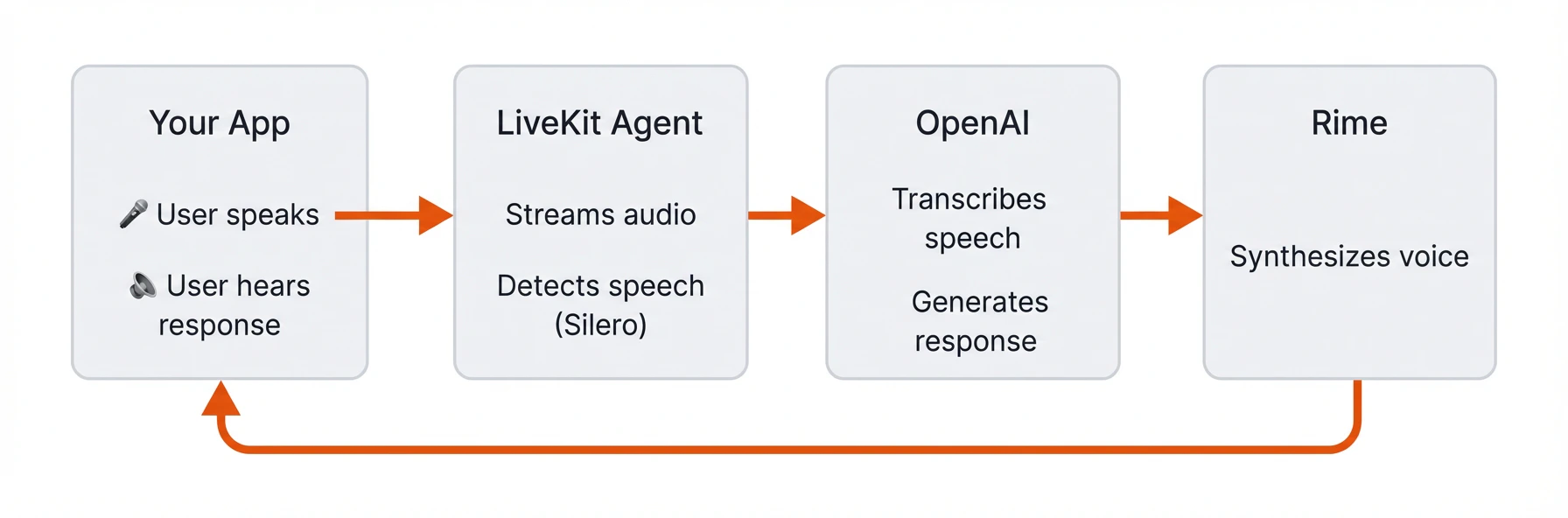
LiveKit terms and architecture
LiveKit terms and architecture
- A Room is a virtual space where participants connect and share media in real time.
- An Agent is a server-side participant that processes media streams and interacts with users.
- LiveKit Cloud transports real-time audio between participants.
Step 2: Project setup
2.1 Create the project folder
Create a new folder for your project and navigate into it:2.2 Set up environment variables
In the new directory, create a file called.env and add the keys that you created in Step 1:
Replace the placeholder values with your actual API keys and credentials.
2.3 Configure dependencies
Create a virtual environment and activate it:uv package manager:
pyproject.toml and add the following dependencies:
- openai plugin: Connects to OpenAI for STT and LLM
- rime plugin: Connects to Rime for text-to-speech
- silero plugin: Voice Activity Detection (knows when you start/stop speaking)
- turn-detector plugin: Detects when you’ve finished your turn in the conversation
- noise-cancellation plugin: Filters out background noise
- python-dotenv: Loads your API keys from the
.envfile
Step 3: Create the agent
Create a file calledagent.py. To run the agent without building it up piece by piece, skip to Step 3.6: Full agent code.
3.1 Load environment variables
Add the following imports and initialization code toagent.py:
.env file so they’re available throughout the application. Don’t skip this step: the LiveKit agents CLI doesn’t load .env files automatically, so without load_dotenv() the worker won’t find your LiveKit and API credentials.
3.2 Define an Agent class
Add the following class definition toagent.py:
Assistant extends the Agent base class and sets the agent’s personality through a system prompt. Step 5.2 shows a longer prompt kept in a separate file.
Import the Agent class at the top of agent.py, along with the rest of the required imports:
3.3 Code the conversation pipeline
Add the followingentrypoint function to agent.py:
model="coda" explicitly in rime.TTS(...). Older LiveKit Rime plugin releases default to the retired arcana identifier when the model is omitted. See Remove Arcana model IDs if an existing agent still relies on that default.
Each time a user connects, this function:
- Connects to the LiveKit room and waits for a participant to join
- Creates an
AgentSessionthat wires together the voice pipeline components: OpenAI for STT and LLM, Rime for TTS, and LiveKit for VAD and turn detection - Starts the session with noise cancellation enabled to filter out background noise from the user’s microphone
- Greets the user with an initial message
3.4 Initialize the VAD plugin
Add the followingprewarm function below the entrypoint function:
3.5 Create the main entrypoint
Add the following__main__ block to agent.py:
WorkerOptions is configured with the two functions you created above: prewarm_fnc runs once per worker process to preload models, and entrypoint_fnc runs each time a user connects to a room.
3.6 Full agent code
At this point, youragent.py should look like the complete example below:
Full agent code
Full agent code
Step 4: Test your agent
4.1 Start the agent
Start your agent by running:dev argument starts the agent in development mode. You’ll see output like:
4.2 Connect to your agent
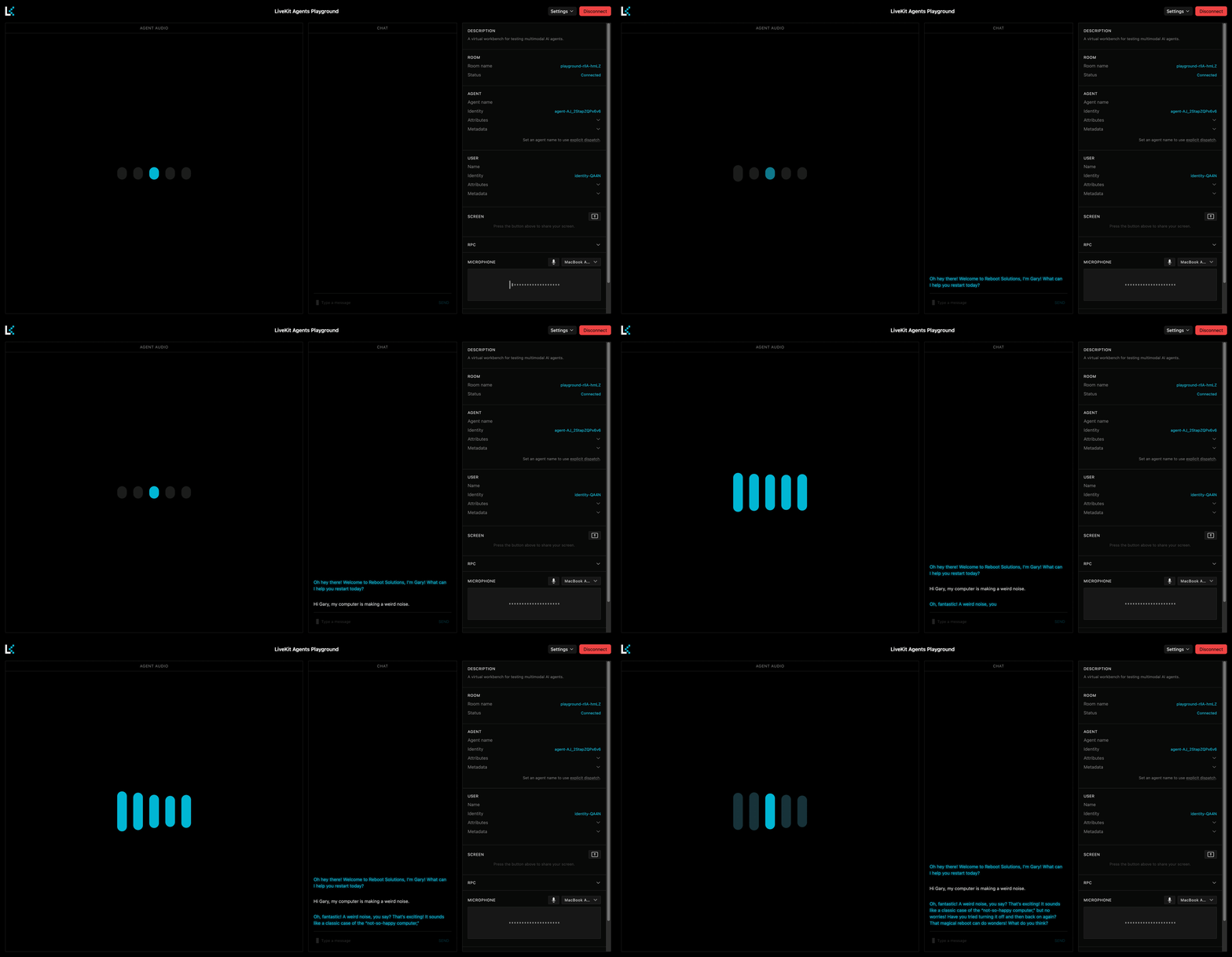
Open the LiveKit Agents Playground in your browser.- Select your project, then select Use [project_name].
- At the top right of the Playground, select Connect.
- Allow microphone access when prompted.
Step 5: Customize your agent
5.1 Change the voice
Update thetts line in your AgentSession to try a different voice:
5.2 Fine-tune agent personalities
Create a new file calledpersonality.py with the following content:
Example personality file
Example personality file
agent.py to import and use this prompt:
entrypoint:
5.3 Adjust TTS chunking
By default,rime.TTS(...) uses Rime’s HTTP synthesis path. LiveKit wraps non-streaming TTS providers so streamed LLM output can be sent to TTS in sentence-aligned chunks.
If you want to tune those chunks, wrap Rime explicitly:
min_token_len: Batches sentences until the chunk reaches this size. Increase it for smoother multi-sentence prosody.max_token_len: Caps chunk size. Use it to avoid very large TTS requests.retain_format: Keeps original whitespace and newlines.Truematches LiveKit’s default wrapper behavior.
Troubleshooting
Agent doesn’t respond to speech
- Check microphone permissions: Ensure your browser has microphone access enabled.
- Verify VAD is working: Look for
speech detectedlogs in the terminal. If missing, check your Silero plugin installation. - Test with text input: Use the chat input in the Playground to confirm the agent logic works.
”Connection refused” or agent won’t start
- Check environment variables: Ensure all keys in
.envare set correctly with no extra spaces. - Verify LiveKit credentials: Confirm your
LIVEKIT_URL,LIVEKIT_API_KEY, andLIVEKIT_API_SECRETmatch your LiveKit Cloud project.
Incorrect voice detection
- Enable noise cancellation: Verify
noise_cancellation.BVC()is included in yourRoomInputOptions. - Check your microphone: Test with a different input device or headset
- Reduce background noise: The VAD may struggle to detect speech in noisy environments.